
AIDealsPro is reader-supported. Some links on this page are affiliate links: if you buy through them we may earn a commission at no extra cost to you. It never changes our verdicts. How we review: https://aidealspro.com/how-we-review/
This tutorial follows Higgsfield’s official help center (“How do I create my first generation?”) — the exact screens and button names, in order. No account tricks, no invented steps.
Best for: first-time Higgsfield users who want the exact official workflow before spending credits.
Not for: advanced multi-model pipelines — this covers the standard generation flow from the help center.
Time needed: about 10 minutes to read; your first test render costs only a few credits.
Table of Contents
Before you start
- A Higgsfield account (the Free tier works for learning the workflow; most models need a paid plan — see our pricing guide).
- An idea of what you want: text-to-video (describe it in words) or image-to-video (start from a picture).
- Know your credit budget: every generation spends credits (Starter = 270/month). Check the cost tables in our pricing guide before rendering.
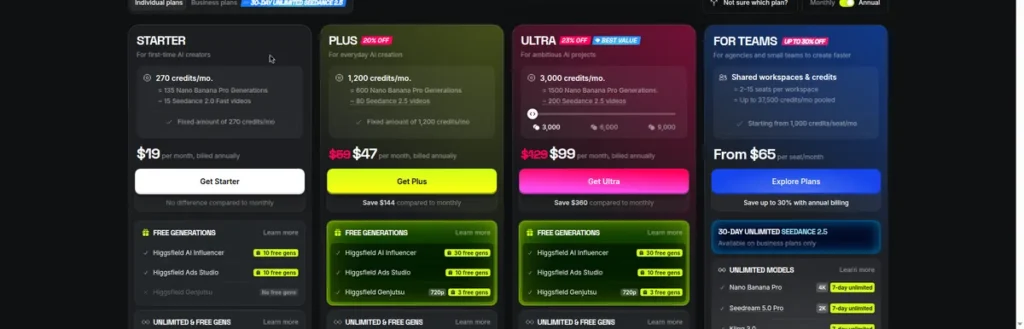
Step 1 — Choose “Video” in the top navigation
After logging in, the top navigation splits creation into “Image” and “Video”. Click “Video” — this is the primary mode split the docs use. (The plan comparison table separately groups models under “Text-to-Video” and “Image-to-Video”.)
Step 2 — Select a model or feature
Each section shows the available models. Pick based on your goal, or start with the default the page suggests. Models include Higgsfield’s own (Soul, Soul ID, Genjutsu, Popcorn, Soul Cinema) and third-party options (Seedance 2.0, Kling 3.0, Google Veo 3, Sora 2, Wan 2.6, Pika 2.2, Pixverse V5, Vidu Q2, and others — availability depends on your plan). Model choice is the biggest factor in both quality and credit cost.
Step 3 — Enter your prompt
Describe what you want to create. Be specific about subject, action, camera, and mood — vague prompts produce generic clips. Example structure: “[subject] + [action] + [camera move] + [lighting/mood]”. Keep your first attempts short (5 seconds) — they cost fewer credits while you learn what works.
Step 4 — Upload a reference image (if the model supports it)
For image-to-video, upload your starting frame. Supported models accept a reference image to control composition and subject. Use a clear, high-contrast image — the output follows it closely.
Step 5 — Adjust settings: duration, aspect ratio, resolution
Set duration (shorter = cheaper), aspect ratio (16:9 for YouTube, 9:16 for Reels/TikTok/Shorts), and resolution. Resolution is the biggest cost lever: on Seedance 2.0, 4K costs roughly 9x the 720p Fast version (~110 vs ~12 credits per 5 seconds). Start at 720p for tests; render finals at higher resolution.
Step 6 — Click “Generate”
Click the “Generate” button. Rendering takes from seconds to minutes depending on the model and queue. Do not close the tab mid-render.
Step 7 — Find your video in “Assets”
Outputs appear in the section where you generated them, and every finished generation is collected in “Assets” (“Your generation appears in Assets when it’s done”, per the help center). Download or share from there.
Prompt examples that work
Structure beats poetry. Three templates that work across most models:
- Cinematic clip: [subject] + [action] + [camera move] + [lighting]. Example: “a barista pouring latte art, slow dolly-in, warm morning light.”
- Product shot: [product] on [surface], [background], camera static, studio lighting. Example: “matte black headphones on a concrete table, dark background, camera static, studio lighting.”
- Image-to-video: upload a clean starting frame, then describe only the motion. Example: “camera slowly orbits left, steam rises.”
Keep first attempts at 5 seconds and 720p — the cheapest way to test whether a prompt works before spending more.
Tips that save credits
- Test at 720p and 5 seconds; only render finals at high resolution.
- Higgsfield’s own models are far cheaper than frontier third-party ones (Soul 2.0 images: 0.12 credits vs Nano Banana Pro: 2) — use them for experiments.
- Write better prompts instead of re-rolling: each regeneration spends credits again.
- Track spending per model for a week before choosing a plan — the pricing tables are here.
Common problems
“Model not included on my plan”
The Free tier excludes most models (“Not included” in the plan table). Upgrade or switch to an included model.
“Credits ran out mid-project”
Subscription credits reset monthly with no rollover. Either wait for reset, buy a credit pack (expires in 90 days), or upgrade.
“My video looks nothing like the prompt”
Add camera, lighting, and action specifics to the prompt. If the subject drifts, switch to image-to-video with a reference frame.
Frequently asked questions
Do I need a paid plan to make videos with Higgsfield?
The Free tier includes only a limited set of models. Real video generation with the main models needs a paid plan — paid plans from $9 or $19 a month, depending on the plan set you are shown (checked 10 Oct 2026).
How long does generation take?
Seconds to minutes depending on model and queue. The help center does not promise exact times.
Where are my generated videos saved?
In “Assets” — every finished generation is collected there automatically.
Can I use my Higgsfield videos commercially?
On paid plans, per the plan’s license terms — check current terms at checkout. The free tier is not cleared for commercial use.
Which model should a beginner start with?
A cheap one. Higgsfield’s own models cost a fraction of frontier third-party models per generation — learn what good prompting looks like there before spending credits on Veo or Sora 2.
What aspect ratio should I use?
16:9 for YouTube, 9:16 for TikTok, Reels, and Shorts. Set it before you generate — changing it afterwards means re-rendering and spending credits again.
Last updated 9 Oct 2026. Steps from Higgsfield’s official help center (“How do I create my first generation?”). Full review: Full review — Pricing: Pricing

The AIDealsPro team reads the official pricing and docs for every tool we cover and re-checks prices monthly.
How we reviewKeep reading
Best Free AI Video Generators (2026): Real Free Plans, Honest Limits
The best free AI video generators in 2026 — real free plans only, with every limit listed: watermarks,…
InVideo AI Review (2026): Pricing, Features & Who Should Use It
InVideo AI review 2026: real pricing, prompt-to-video workflow, free plan limits, and who should skip it. Prices via…
Best AI Tools for Faceless YouTube Channels (2026): Full Workflow
The best AI tools for faceless YouTube channels in 2026: script, voice, video, and thumbnail workflow with real…